1 min readVersion française
Azure Policy: reading Activity Logs to diagnose a Deny
How to filter Activity Logs on Microsoft.Authorization to identify which assignment blocked which resource, and why.
Contents
When an Azure Policy blocks a deployment, the error message in Terraform or in the portal often shows the responsible assignment but not always the full detail of the violated rule. Azure Activity Logs keep a complete trace of every denial.
Where to look in the portal#
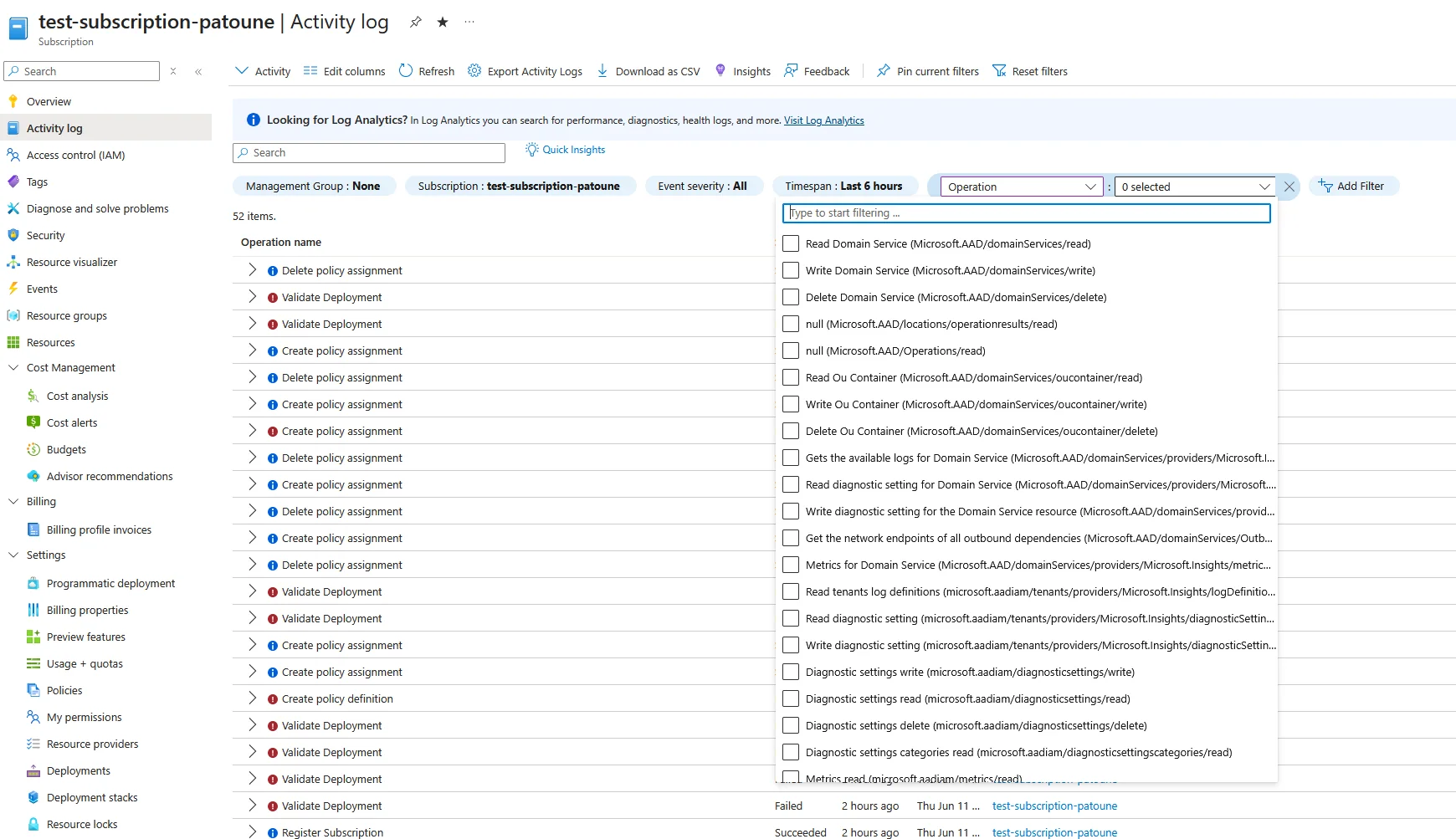
Activity Logs are accessible from several places: at the subscription level, resource group level, or directly from a resource. To diagnose a Policy Deny, go to Activity Log.
Filtering Policy events#
Events related to Azure Policies have an operation type of Microsoft.Authorization/*.
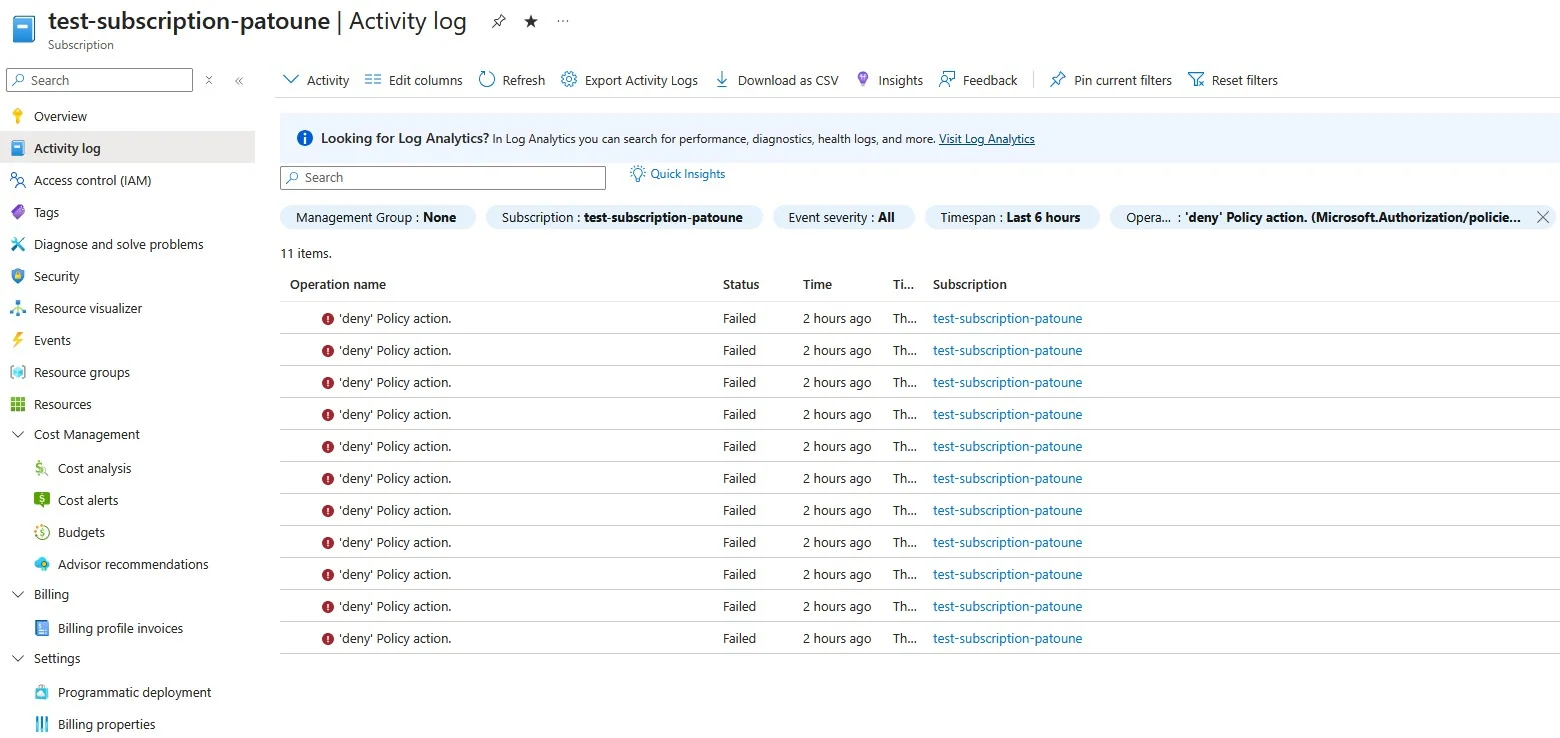
To isolate Deny events:
- In the Activity Log, click Add filter
- Operation filter: search for
Microsoft.Authorization/policies - Status filter:
Failed(Deny events appear as failed operations) - Adjust the time range as needed
Reading the detail of a Deny event#
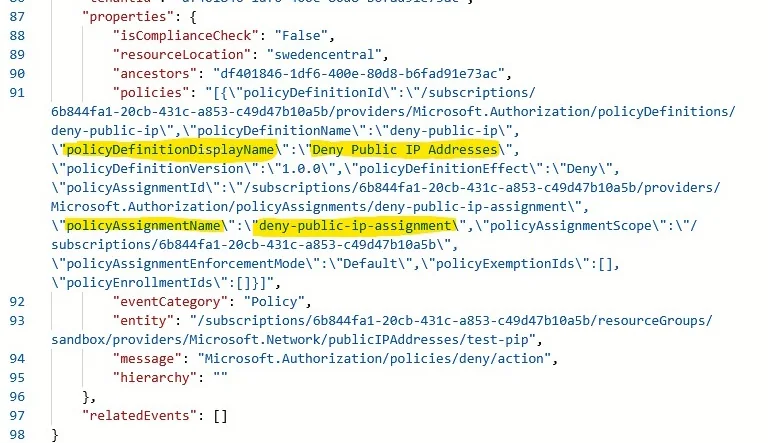
Click on an event to see the detail. The key information is in the JSON tab of the event.
The policies field contains:
policyAssignmentName: the name of the assignment that triggered the DenypolicyDefinitionName: the specific policy within the initiativepolicySetDefinitionName: the parent initiative (if applicable)
Via PowerShell#
To filter from the command line over the last 24 hours:
$startTime = (Get-Date).AddHours(-24)

Get-AzActivityLog `
  -ResourceGroupName "my-rg" `
  -StartTime $startTime `
  -Status "Failed" |
  Select-Object EventTimestamp, Caller, ResourceId, Status
To get the full JSON detail of a specific event:
$startTime = Get-Date "2024-12-10T08:00:00Z"

Get-AzActivityLog `
  -ResourceGroupName "my-rg" `
  -StartTime $startTime `
  -Status "Failed" |
  Select-Object -First 1 |
  Select-Object -ExpandProperty Properties |
  ConvertTo-Json -Depth 10
Via KQL in Log Analytics#
If Activity Logs are sent to a Log Analytics workspace (recommended in production):
AzureActivity
| where OperationNameValue startswith "microsoft.authorization/policies"
| where ActivityStatusValue == "Failed"
| extend policyInfo = parse_json(Properties).policies
| project
    TimeGenerated,
    Caller,
    ResourceId,
    OperationName,
    policyInfo
| order by TimeGenerated desc
This is a quick way to diagnose why a deployment failed.
💡 In another article, I covered a system for customizing
Denymessages in a policy. Setting up these messages will save time on future Activity Log investigations.
- #azure
- #policy
- #governance
- #monitoring